Fence Icons: A Practical Guide to Minimalist Icon Sets for Modern Projects
When building a digital product, designing a publication, or preparing visual content, the choice of iconography can significantly influence both usability and aesthetic coherence. Fence Icons is a curated set of high-quality, minimalist icons designed with an editable stroke, offering a consistent visual language suitable for a wide range of applications. This article provides an objective evaluation of what Fence Icons offers, explores its potential benefits and limitations, and helps you decide whether it aligns with your specific project needs.
What Is Fence Icons?
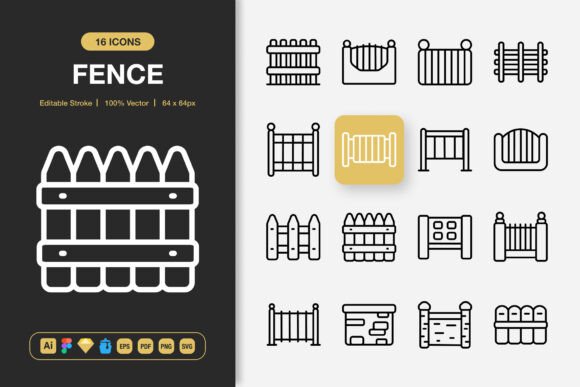
Fence Icons is a collection of minimalist icons created with a focus on clarity, scalability, and ease of customization. Each icon features an editable stroke, meaning you can adjust line weight, color, and other vector properties without losing quality. The set is provided in multiple file formats, including Adobe Illustrator, Figma, Iconjar, Sketch, EPS version 10, PDF, SVG, and PNG at seven distinct sizes (32px, 48px, 64px, 96px, 128px, 256px, and 512px). This broad format support makes the set accessible across different design tools and workflows. The icons are intentionally simple, avoiding unnecessary ornamentation, which makes them suitable for projects where clarity and consistency are priorities.
Why Consider a Minimalist Icon Set Like Fence Icons?
Designers and content creators often seek icon sets that reduce visual noise while maintaining strong communicative function. Fence Icons addresses this need by offering a uniform stroke-based style that pairs well with modern interfaces, print layouts, and social media graphics. The set’s 100% customizability allows you to modify stroke weight, color, and scale without degrading quality, which is particularly useful when adapting icons to different brand guidelines or screen resolutions. The inclusion of multiple file types also means you can use the icons directly in web development (via SVG), prototyping (via Figma or Sketch), or print production (via EPS or PDF).
Key Features and What They Mean for Your Workflow
Understanding the practical implications of each feature can help you assess whether Fence Icons meets your production requirements.
- Editable Stroke: This feature gives you control over line thickness and color. In practice, you can adjust icons to match your brand’s visual weight or ensure legibility at different sizes. However, note that editing strokes requires vector editing software such as Adobe Illustrator or Figma; if your workflow relies solely on raster tools, you may need to work with the provided PNG files instead.
- High Quality and 100% Customizable: The icons are vector-based, which means they remain crisp at any resolution. You can change colors, combine elements, or scale icons without loss of fidelity. This is a clear benefit for responsive design or multi-format publishing. The tradeoff is that customization requires some familiarity with vector editing tools.
- Easy Drag and Drop: The files are organized for direct import into supported applications. For Figma, Iconjar, and Sketch users, this streamlines the process of integrating icons into existing projects. If you use other tools, you may need to import SVG or EPS files manually.
- Comprehensive File Formats: The inclusion of Adobe Illustrator, Figma, Iconjar, Sketch, EPS version 10, PDF, SVG, and PNG (at seven sizes) provides flexibility. For web developers, SVG files are ideal because they allow inline styling and accessibility attributes. For print designers, EPS or PDF files offer reliable output. The multiple PNG sizes save time when you need raster assets for different platforms. On the other hand, managing seven PNG sizes per icon can add file clutter; you may only need a subset of these sizes for your project.
- Readme.txt: A simple documentation file helps you get started. This is a small but practical addition, especially if multiple team members need to understand the file structure.
Benefits and Practical Considerations
Using a consistent icon set like Fence Icons can reduce design debt and speed up production. When every icon shares the same stroke style and visual language, users experience a more cohesive interface, and readers encounter fewer distractions in printed materials. The minimalist approach also tends to age well, avoiding trendy details that could make your project look dated in a few years.
There are, however, tradeoffs. Minimalist icons may not convey complex ideas as effectively as more detailed illustrations. If your content requires metaphorical or highly specific imagery, you might need to supplement the set with custom icons or a different collection. Additionally, while the editable stroke is a powerful feature, it requires vector editing skills. Teams without access to Adobe Illustrator or Figma may find the PNG files sufficient for basic use, but they lose the ability to fine-tune the icons.
Another consideration is file size. The set includes many PNG variants, which can add up in storage and download size. For web projects, you will likely rely on SVGs to keep page weight low, but if you need raster icons at multiple sizes, plan your asset pipeline accordingly.
When Fence Icons Is a Strong Fit
Fence Icons works well in scenarios where consistency, scalability, and simplicity are important. Here are some specific situations where it may be an excellent choice:
- Web and mobile app interfaces: The uniform stroke style aligns with modern UI trends, and the availability of SVG files makes integration straightforward. Editable stroke allows you to match brand colors and line weights.
- Social media and presentation graphics: Minimalist icons draw attention to content without overwhelming the viewer. The PNG sizes cover common social media dimensions, and SVG files can be scaled for larger presentations.
- Books, infographics, and educational materials: Clean icons improve readability and comprehension, especially in diagrams or sidebars. The PDF and EPS formats are suitable for high-resolution print.
- Flyers, banners, and posters: The set’s clarity works well at large sizes, and you can adjust stroke weight to ensure visibility from a distance.
- Multi-platform projects: If you need to deliver consistent iconography across web, iOS, Android, and print, having a single source file set with multiple export sizes simplifies the workflow.
When Alternatives May Be Worth Considering
No icon set is universally applicable. You might consider alternatives to Fence Icons in the following situations:
- You need highly distinctive or branded iconography: If your project requires icons that reflect a unique personality or complex metaphors, a general minimalist set may feel generic. Custom illustration or a more specialized icon collection could serve you better.
- You require icons with varying stroke styles or filled variants: Some projects mix outlined and filled icons to convey active states or hierarchy. Fence Icons focuses on outlined stroke icons, so if you need both styles, you may need a different set or to create filled versions manually.
- You work exclusively with non-vector tools: Editors like Canva, Keynote, or basic image editors cannot modify SVG properties easily. You would rely on PNG files, which limits customization and scalability.
- You need icons in specialized formats: For example, icon fonts (WOFF2) or React component packages. Fence Icons does not include these; you would need to convert SVG files manually or choose a set that offers direct code integration.
- Licensing and team size constraints: Evaluate the license terms of any icon set to ensure they cover your intended use, such as commercial distribution, SaaS products, or team access. If you have specific licensing needs, confirm that Fence Icons or any alternative meets them.
Decision-Making Insights: How to Evaluate Whether Fence Icons Aligns with Your Goals
To determine whether Fence Icons is the right fit for your project, start by mapping your requirements against what the set offers:
- Assess your design style: Is your project aligned with minimalism, or does it call for more expressive visuals? If your brand or content leans toward simplicity, Fence Icons is likely a strong match. If you need ornate or themed icons, look elsewhere.
- Review your technical environment: List the software your team uses. If you rely on Figma, Sketch, Adobe Illustrator, or Iconjar, integration will be smooth. For other tools, check whether the available formats (SVG, EPS, PDF, PNG) are compatible.
- Define your customization needs: Do you plan to edit stroke weight, color, or shape? If yes, ensure your team has vector editing capabilities. If you only need ready-to-use static icons, the PNG files may suffice, but you lose flexibility.
- Consider your output formats: For web projects, SVG is usually the best choice. For print, EPS or PDF provide reliability. For mobile apps, you may need multiple PNG sizes or SVGs. Fence Icons covers these bases, but verify that the sizes and formats match your specific platform requirements.
- Estimate the total number of icons you need: If your project requires hundreds of unique icons, a set like this provides a solid foundation. If you only need a handful, the cost and file management overhead may not be justified.
- Think about future scalability: A consistent icon set makes it easier to maintain visual harmony as your project grows. Fence Icons can serve as a baseline, but you may need to supplement it with additional icons over time. Check whether the style is reproducible in-house or through other resources.
Final Considerations Before Choosing Fence Icons
Fence Icons offers a well-rounded solution for designers and developers who value consistency, quality, and flexibility in their iconography. Its editable stroke, multiple format support, and minimalist design make it particularly useful for cross-platform projects, digital interfaces, and print materials where clarity is important. The set does not require a steep learning curve for those already familiar with vector editing tools, and the included documentation helps new users get started quickly.
On the other hand, if your work demands highly expressive or thematic icons, or if your technical setup does not support vector editing, you may find the set limiting. Similarly, if you need ready-to-use icon fonts or code components, you will need to create those yourself from the SVG files. Evaluating these factors against your specific project constraints will help you make an informed decision. Ultimately, Fence Icons is a practical, no-fuss option for anyone seeking a clean, consistent icon language that adapts to modern design workflows.